Enterprise UI Design Systems and Platform Updates: What Teams Need to Know Before the Next OS Release
An enterprise UI design system survives a major platform update by doing two things before the update ships: maintaining a shared, precise vocabulary for every UI component, and auditing which of those components inherit visual behavior from the operating system rather than from your own code. iOS 26's Liquid Glass interface is the clearest recent proof of why this matters. Apple shipped a translucent, animated design language that Nielsen Norman Group called out by name for hurting legibility and breaking established interaction patterns, and Apple has spent the months since walking parts of it back. Enterprise teams that had already mapped their platform-dependent components absorbed that change in a review cycle. Teams that hadn't found out from users, or from support tickets, instead.
The Problem: Platform Risk Is Structural, Not a Design Preference
Enterprise UI teams tend to treat operating system updates as a cosmetic refresh to accommodate, not a risk to plan for. That framing breaks down the moment a platform changes something structural underneath an app's controls, and iOS 26 changed several things at once: transparency, animation behavior, tab bar density, and control sizing all shifted in the same release.
The deeper issue is that most teams lack two things simultaneously: a shared, specific vocabulary for describing UI components, and a standing process for evaluating platform dependencies before they cause a problem. Without the first, a "dropdown" means three different things to three different people on the same project. Without the second, nobody owns the question of which components will actually change when the next OS ships.
Case Study: What Liquid Glass Actually Broke, and What Apple Fixed
Nielsen Norman Group, one of the most cited authorities in UX research, published a direct verdict on iOS 26 in October 2025: the analysis concluded that Apple prioritized visual spectacle over usability, and that the new interface made everyday interactions less predictable and harder to read than the version it replaced. That is not a fringe design blog's opinion. It is a named critique from a firm whose founders wrote foundational usability research decades before Liquid Glass shipped.
The specific complaints map directly onto enterprise risk. Apple's own developer forums logged reports that system-wide transparency and blur reduced text readability and contrast across core interface elements, with existing accessibility settings only partially compensating. Coverage from Gulf News reported that the complaint inside corporate and education device fleets was less about aesthetics and more about compliance: a UI that washes out under bright light or heavy backgrounds creates a legibility problem that IT administrators, not just designers, have to answer for.
Here is the part worth tracking closely if you run an enterprise design system: Apple responded to the backlash. iOS 26 shipped with an existing Reduce Transparency toggle under Accessibility settings, and by iOS 26.1 beta 4, Apple added a new system-wide "Tinted" appearance option specifically to tone down the glass effect after weeks of criticism. Developers who need to opt an app out of the new visual language entirely have a more direct lever available: setting UIDesignRequiresCompatibility = YES runs the app in a compatibility mode that preserves the prior interface behavior rather than inheriting Liquid Glass automatically.
That sequence, launch, backlash, partial reversal, is the pattern enterprise teams should expect from major platform redesigns going forward, not treat as a one-time surprise. The lesson is not "avoid Liquid Glass." It is that a platform vendor's own design language can ship with usability regressions serious enough to require a public walk-back, which means an enterprise team's independent evaluation is not optional due diligence. It is the only check between a platform vendor's release calendar and your own users' task completion rates.
Why UI Component Naming Prevents This From Compounding
A shared component vocabulary is what lets a design, development, and product team confirm they are solving the same problem before a platform update ever ships. Without it, review cycles spend time discovering disagreements about what a component even is, instead of evaluating whether it survived the platform change intact.
| Component category | Common confusion | What actually distinguishes them |
|---|---|---|
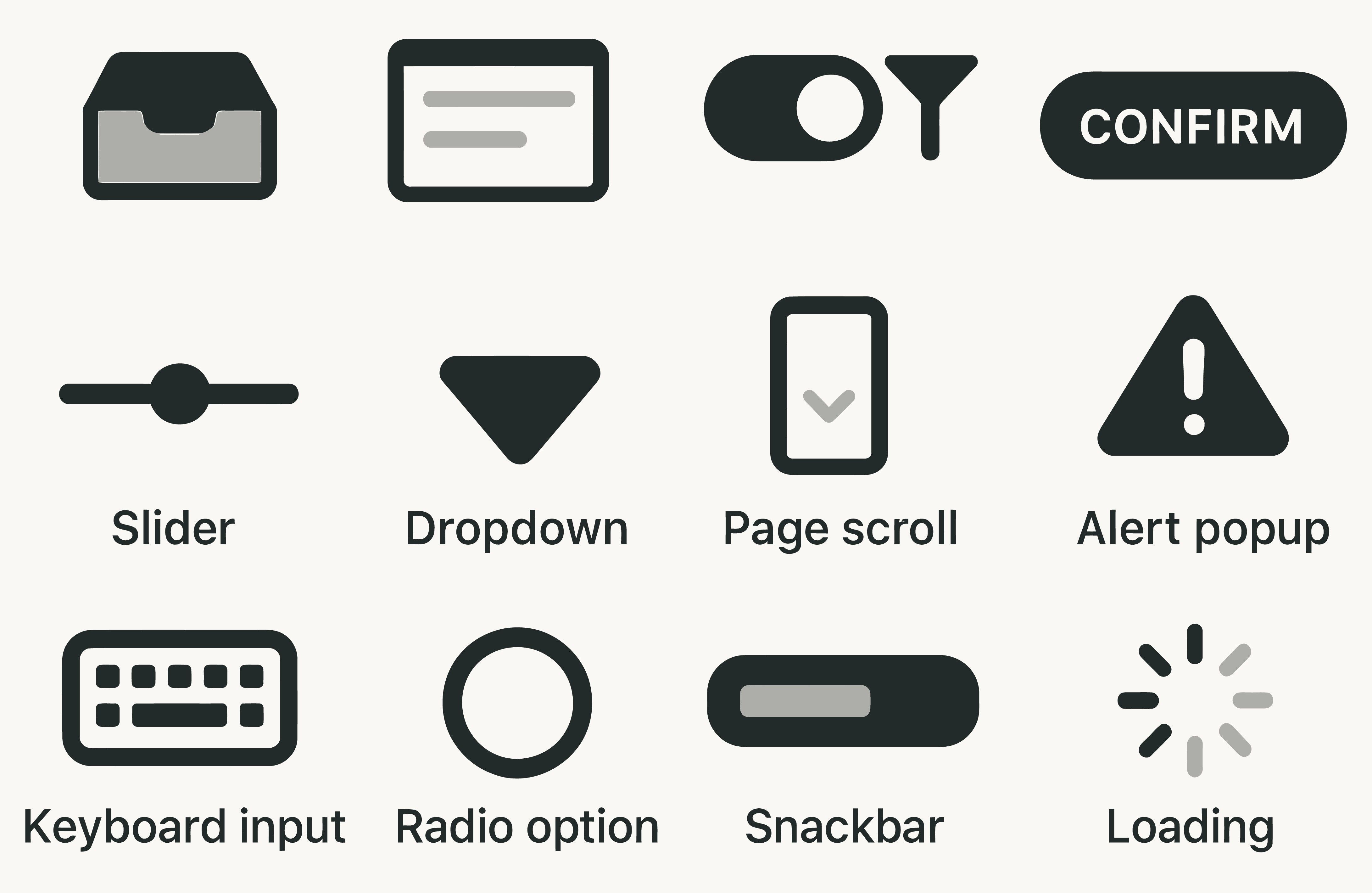
| Dropdown vs. listbox | Used interchangeably in specs | A dropdown collapses to one visible option until activated; a listbox displays all options at once and can support multi-select |
| Dialog vs. popup vs. snackbar | All called "modal" informally | A dialog blocks interaction with the page until dismissed; a popup does not take over the full screen; a snackbar is transient and dismisses itself without user action |
| Tab bar vs. navigation bar | Both called "navigation" | A tab bar switches between panels of the same content; a navigation bar moves users between categories in the broader information architecture |
| Spinner vs. progress bar vs. skeleton screen | Treated as interchangeable loading states | A spinner signals an ongoing process with no time estimate; a progress bar shows advancement toward a known completion point; a skeleton screen pre-renders the layout to reduce perceived wait time |
Three steps close this gap in most organizations within a quarter. First, build a single shared component reference, inside the design system or component library, that names each element, defines its interaction model, and shows a real example, starting with the ten most-used components rather than trying to document everything at once. Second, require that specifications and handoff notes use the reference's exact terms, since a mismatch between a spec's vocabulary and a developer's vocabulary is one of the more preventable sources of rework in enterprise delivery. Third, document the interaction model alongside the name, not just a label on a diagram, since the default state, the activated state, and the dismissal behavior are what actually get built wrong.
How to Audit Platform-Dependent Components Before the Next OS Release
The direct answer: identify which of your components inherit visual behavior from the platform rather than your own code, then run a structured evaluation against legibility, contrast, tap target size, and control predictability every time a major OS version is announced, before it ships to users.
Tab bars, navigation controls, overlays, and native input fields are the most common platform-dependent components in an enterprise mobile app, and they are exactly the categories Liquid Glass affected. When a major release is announced, run a focused heuristic review of those specific components against four criteria: whether text and icons stay legible against dynamic or image-heavy backgrounds, whether contrast holds up under the platform's default appearance setting, whether tap targets meet minimum size and spacing guidance, and whether controls behave predictably or shift position and visibility based on system state.
Follow that review with a small moderated usability session, five representative users completing a realistic task is generally enough to surface friction an expert review misses, because platform changes affect real task flow in ways a walkthrough alone does not reveal. Close the loop by logging the finding directly in the design system, a single dated note such as "iOS 26.1 Tinted mode reduced legibility complaints on the dashboard tab bar, reviewed October 2025," so the next platform cycle does not require re-discovering the same regression from scratch.
Enterprise UI Platform Update Checklist
- Does the design system define every referenced component with a consistent name, tied to a documented interaction model?
- Have platform-dependent elements been listed separately from custom-built components, so it is clear which ones inherit OS-level risk?
- Has legibility been checked under the platform's current default appearance, including any transparency or translucency setting?
- Have tap targets been measured against the platform's current minimum size and spacing guidance?
- Has the most recent OS update been reviewed specifically for navigation, overlay, or input behavior changes?
- Have at least five representative users completed a realistic task on the current platform version, not just a design review?
- Is there a dated log entry for every platform-driven UI change the team has already found and addressed?
Frequently Asked Questions
What is Liquid Glass in iOS 26?
Liquid Glass is the translucent, animated visual design language Apple introduced across iOS 26, applying glass-like transparency and motion effects to controls, navigation bars, and overlays system-wide. Nielsen Norman Group's review found it reduced legibility and broke established interaction conventions compared to the interface it replaced.
How do I fix readability problems caused by Liquid Glass?
Apple's Accessibility settings include a Reduce Transparency toggle under Display & Text Size, which lessens the glass effect's impact on contrast. As of iOS 26.1 beta 4, Apple added a system-wide "Tinted" appearance option specifically to address legibility complaints, giving users a more opaque alternative without fully disabling the new design language.
Can developers opt their app out of Liquid Glass entirely?
Yes. Setting the UIDesignRequiresCompatibility key to YES runs an app in a compatibility mode that preserves the interface behavior from before Liquid Glass, rather than automatically inheriting the new visual language.
What is the difference between a dropdown and a listbox?
A dropdown shows a single collapsed option until the user activates it, then reveals a list to choose from. A listbox displays all available options at once and can support selecting more than one, which makes it a different interaction model, not just a different visual style.
What is a UI design system, and why does enterprise software need one?
A UI design system is a shared, documented set of components, patterns, and interaction rules that keeps design and development consistent across a product. In enterprise software, it matters most during platform updates, since a documented system is what lets a team quickly identify which components are affected by an OS change instead of discovering it through user complaints.
Why does my app look or behave differently after an iOS update?
Native UI components, tab bars, system navigation, standard input fields, inherit their visual behavior from the operating system rather than from an app's own code. When Apple changes that behavior, as it did broadly with Liquid Glass in iOS 26, any app using those native components changes appearance and sometimes interaction behavior without the app's own code changing at all.
How often should enterprise teams review platform-dependent UI components?
At minimum, once per major OS release cycle, typically annually for iOS and Android's largest updates. Products with high mobile usage benefit from a lightweight review aligned to each OS beta cycle, which is when regressions like Liquid Glass's legibility issues are still fixable before public release rather than after user complaints arrive.
Experience Design transformation with Tarento →



10 Enterprise Technology Trends in 2026: A Tarento Guide for CTOs and Software Architects